See the name of the database used by WP. You can find the database name in the wp-config.php file or you can use the command
grep DB_NAME wp-config.phpWe are interested in this line
define( 'DB_NAME', 'wpdatabase' );Once we find out the name of the database we need to connect to it using the command
mysql -u root -p wpdatabaseNow we need to find the user using a command similar to this, customize as needed
SELECT ID, user_login, user_pass, user_email FROM wp_users;when we find the user it is easiest to select it using the ID, most often the administrator ID is 1 because it is the first user-created, and the command to enter a new password is as follows
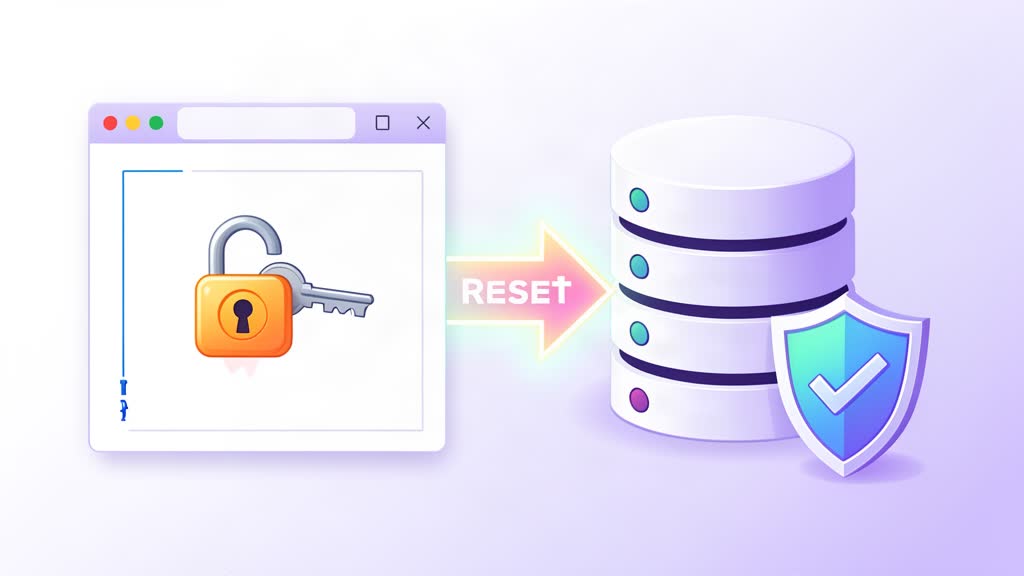
UPDATE wp_users SET user_pass = MD5('my-new-password-here') WHERE ID = 1;
quit;
Note: Modern WordPress uses PHP password hashing (phpass) — not plain MD5. The MD5 hash set above gets automatically upgraded to the stronger hash on first successful login, so the password works immediately. For a cleaner approach on servers with WP-CLI installed, use:
wp user update 1 --user_pass="my-new-password-here" --path=/var/www/htmlWP-CLI handles hashing automatically and is less error-prone than manual SQL edits.
That’s it, try logging in to WP administration.
Alternative: WP-CLI
If WP-CLI is installed, resetting a password is a single command:
wp user update 1 --user_pass=newpassword --path=/var/www/htmlThis uses WordPress’s native password hashing and avoids direct database access. Install WP-CLI from wp-cli.org if not already available. Use a strong, unique password for each admin account — it prevents unauthorized access even if other credentials are compromised.
Related areas
Related What I Do
These What I Do pages are matched from the subject matter of this article, creating a cleaner path from educational content to implementation work.
Continue reading
Related articles
Based on shared categories first, then the strongest overlap in tags.