 Goran Štimac
File Descriptor Limits and Nginx Worker Connections: A Practical Guide
This article covers two critical aspects of production nginx deployment: managing open file descriptor limits (ulimit -n) and configuring worker_connections for zero-downtime deployments.
Table of Contents
- Understanding File Descriptors
- Systemd Default Limits
- Nginx Service Override
- SSH Session Limits
- Nginx Worker Connections Configuration
- Graceful Reload and Zero Downtime
- Troubleshooting Common Issues
1. Understanding File Descriptors
A file descriptor is an integer identifier for an open file, socket, pipe, or other I/O resource. Each process has a limit on the number of simultaneous file descriptors it can have open. When this limit is reached, the system returns EMFILE (Too many open files) error.
Why This Matters for Nginx
Nginx handles thousands of concurrent connections using a non-blocking event-driven architecture. Under high load:
- Each connection requires at least one file descriptor (the socket)
- Persistent keep-alive connections multiply the count
- Upstream backend connections also consume descriptors
The classic error you’ll encounter:
2024/06/23 14:32:15 [error] 1234#1234: *9876 accept() failed (24: Too many open files)2. Systemd Default Limits
On modern Linux systems using systemd, the default ulimit for most services is 1024. This is often insufficient for production nginx deployments.
Checking Current Limit
# Check shell limit (affects interactive sessions)
ulimit -n

# Check process limit for a running nginx worker
cat /proc/<pid>/limits | grep "open files"

# Example output:
# Max open files                 1024              65536               files             hard soft
System-wide Default
The kernel’s system-wide maximum is defined in /etc/security/limits.conf:
# View defaults
grep -E "^*" /etc/security/limits.conf | grep nofile
Typical default:
*                soft    nofile   1024
*                hard    nofile   4096
3. Nginx Service Override
The most reliable way to set limits for nginx is through a systemd service override file. This approach persists across reboots and doesn’t require manual intervention.
Method 1: Using systemctl edit (Recommended)
This method creates an editable drop-in file without directly modifying system files:
# Create/edit the nginx service override
sudo systemctl edit --drop-in nginx.conf <<EOF

# Increase open file descriptor limits for nginx
[Service]
LimitNOFILE=65535
LimitNPROC=65535
EOF
Or write to a file:
sudo mkdir -p /etc/systemd/system/nginx.service.d/
sudo tee /etc/systemd/system/nginx.service.d/limits.conf > /dev/null <<EOF
[Service]
LimitNOFILE=65535
LimitNPROC=65535
EOF
Method 2: Using systemctl edit with Drop-in Syntax
For more granular control, specify limits in the override format:
sudo systemctl edit --drop-in nginx.conf <<EOF
# Drop-in override for nginx file descriptor limits
[Service]
LimitNOFILE=65535
LimitNPROC=65535

# Optional: Also set rlimit_nofile in nginx config if needed
Environment="NGINX_LIMIT_NOFILE=65535"
EOF
Reload and Restart
After creating the override:
# Reload systemd to pick up changes
sudo systemctl daemon-reload

# Restart nginx (not just reload - rlimit changes require restart)
sudo systemctl restart nginx

# Verify the new limits are applied
systemctl show nginx -p LimitNOFILE -p LimitNPROC --value

# Check a running worker process
cat /proc/$(pgrep -f 'nginx: worker')/limits | grep "open files"
Alternative: In /etc/security/limits.conf
For systems that don’t use systemd or for additional safety:
# Add to /etc/security/limits.conf
*                soft    nofile   65535
*                hard    nofile   65535
nginx            soft    nofile   65535
nginx            hard    nofile   65535
Note: This only affects processes started by login shells. For systemd-managed services, the override file method is preferred.
4. SSH Session Limits
SSH sessions are affected by PAM configuration and /etc/security/limits.conf. Without proper limits, you may hit ENFILE or EMFILE errors when running commands that open many files.
Check Current SSH Limit
# Interactive session
ulimit -n

# Should show 65535 if properly configured
Configure PAM Limits
Edit /etc/pam.d/sshd:
sudo nano /etc/pam.d/sshdAdd or modify the pam_limits.so line:
session required pam_limits.soEnsure limits.conf has proper entries (as shown above).
Test SSH Session Limits
After changes, disconnect and reconnect to apply new limits. Note that some configurations require a full logout/login cycle.
5. Nginx Worker Connections Configuration
The worker_connections directive in /etc/nginx/nginx.conf controls the maximum number of simultaneous connections each worker process can handle.
Basic Configuration
http {
    # Increase file descriptor limit for nginx workers
    worker_rlimit_nofile 65535;

    events {
        # Maximum concurrent connections per worker process
        worker_connections 1024;

        # Use accept() instead of poll() on some platforms
        use epoll;

        # Allow non-blocking I/O (default)
        multi_accept on;
    }

    http {
        # Keepalive settings
        keepalive_timeout 65;
        keepalive_requests 1000;

        # Connection limits
        server_tokens off;
    }
}
Calculating Maximum Connections
Total concurrent connections = worker_processes × worker_connections
Example with default configuration:
worker_processes auto(typically equals CPU cores, e.g., 8)worker_connections 1024- Maximum: 8 × 1024 = 8,192 concurrent connections
For high-traffic scenarios:
- Increase
worker_connectionsto 4096 or higher - Use
worker_rlimit_nofileto ensure sufficient file descriptors
Recommended Values by Traffic Level
| Traffic Level | worker_processes | worker_connections | Total Capacity |
|---|---|---|---|
| Development | 1 | 512 | 512 |
| Low | 4 | 1024 | 4,096 |
| Medium | 8 | 2048 | 16,384 |
| High | 16 | 4096 | 65,536 |
| Very High | 32 | 8192 | 262,144 |
6. Graceful Reload and Zero Downtime
Nginx supports graceful reloads that allow new configuration to take effect without dropping existing connections.
The Four Phases of Nginx Reload
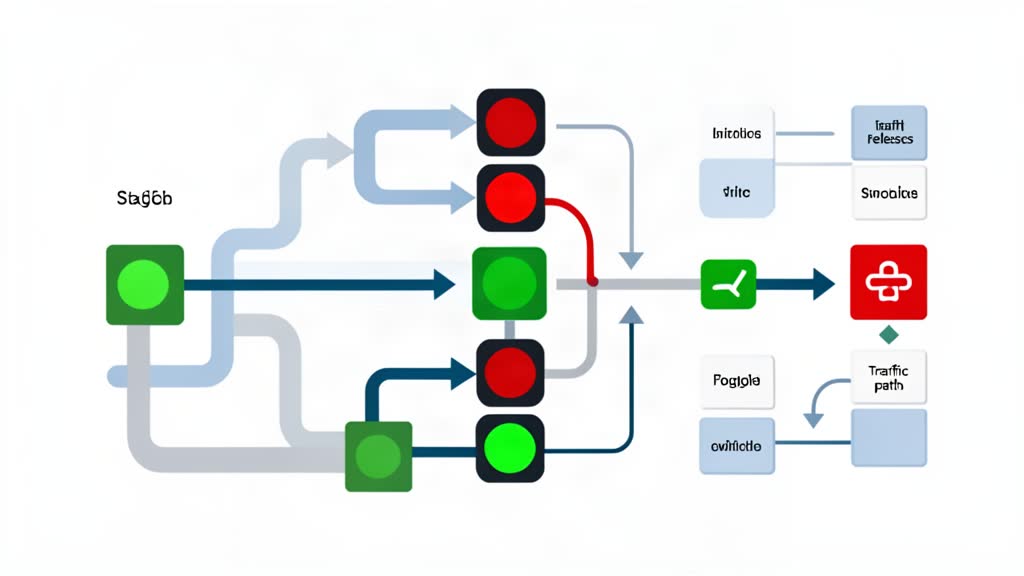
- Master process reads new config
- Worker processes are signaled to stop accepting new connections
- Existing connections complete gracefully
- New worker processes start with new config
Using nginx -s reload (SIGUSR2)
# Standard graceful reload
sudo nginx -s reload

# Equivalent systemctl command
sudo systemctl reload nginx
What happens:
- Existing connections continue uninterrupted
- New connections use the new configuration
- No downtime for users
Using nginx -s reopen (SIGHUP)
For reopening log files without disconnecting clients:
sudo nginx -s reopenUsing nginx -s stop and start (SIGQUIT + SIGCHLD)
Not recommended for production unless you need a full restart:
# This drops all existing connections
sudo nginx -s stop  # Sends SIGQUIT
sudo systemctl start nginx  # Starts new workers
Zero-Downtime Deployment Best Practices
Pre-Deployment Checks
# 1. Validate configuration syntax
sudo nginx -t

# Expected output:
# nginx: the configuration file /etc/nginx/nginx.conf syntax is ok
# nginx: configuration file test is successful

# 2. Check current limits
ulimit -n
cat /proc/$(pgrep nginx)/limits | grep "open files"

# 3. Verify worker processes
systemctl status nginx
Deployment Sequence
# Step 1: Backup current config
sudo cp /etc/nginx/nginx.conf /etc/nginx/nginx.conf.backup.$(date +%Y%m%d)

# Step 2: Apply new configuration (edit nginx.conf)
sudo nano /etc/nginx/nginx.conf

# Step 3: Validate syntax
sudo nginx -t

# Step 4: Graceful reload
sudo nginx -s reload

# Step 5: Monitor for errors
tail -f /var/log/nginx/error.log

# Step 6: Verify new workers are running
pgrep -a nginx
Handling Configuration Errors
If nginx -t fails, the reload is aborted and existing connections remain active:
# If syntax error detected
sudo nginx -t
# Output includes "syntax error" - NO RELOAD occurs

# Fix the configuration file
sudo nano /etc/nginx/nginx.conf

# Retry validation
sudo nginx -t

# Then reload when successful
sudo nginx -s reload
Advanced: Phased Reload with OpenResty/OpenSsl
For even smoother transitions, you can use Lua-based phased deployments or SSL certificate rotation without downtime.
7. Troubleshooting Common Issues
Issue 1: “Too many open files” Error
Symptom:
2024/06/23 14:32:15 [error] accept() failed (24: Too many open files)Solution:
# Check current limit
ulimit -n

# If still low, verify systemd override
systemctl show nginx -p LimitNOFILE --value

# Restart nginx to apply changes
sudo systemctl restart nginx

# Verify worker process limits
cat /proc/$(pgrep -f 'nginx: worker')/limits | grep "open files"
Issue 2: Connection Refused After Reload
Symptom: Clients cannot connect immediately after nginx -s reload.
Cause: New configuration may have incorrect listen directives.
Solution:
# Check nginx status
systemctl status nginx

# If failed, rollback to backup
sudo cp /etc/nginx/nginx.conf.backup.* /etc/nginx/nginx.conf
sudo systemctl restart nginx

# Then fix the configuration and reload again
sudo nginx -t && sudo nginx -s reload
Issue 3: Worker Processes Not Starting
Symptom: Only master process running, no workers.
Check:
# View nginx status
systemctl status nginx

# Check logs
journalctl -u nginx -n 50

# Common causes:
# - Invalid configuration syntax
# - Insufficient file descriptor limits
# - Missing directories/files referenced in config
Issue 4: Limits Not Applying After Reboot
Symptom: ulimit -n shows low value after system restart.
Solution:
# Verify systemd override file exists
ls -la /etc/systemd/system/nginx.service.d/

# Ensure service is enabled
sudo systemctl enable nginx

# Reload and restart
sudo systemctl daemon-reload
sudo systemctl restart nginx

# Check limits are applied
systemctl show nginx --property=LimitNOFILE,LimitNPROC
Quick Reference Commands
File Descriptor Limits
# Check current limit
ulimit -n

# Check process limit
cat /proc/<pid>/limits | grep "open files"

# View systemd limits
systemctl show nginx -p LimitNOFILE,LimitNPROC --value

# Reload systemd daemon
sudo systemctl daemon-reload

# Restart nginx (required for rlimit changes)
sudo systemctl restart nginx
Nginx Worker Connections
# Test configuration
sudo nginx -t

# Graceful reload
sudo nginx -s reload
# or
sudo systemctl reload nginx

# Check worker processes
pgrep -a nginx | grep "worker"

# View current config
grep -E "(worker_processes|worker_connections)" /etc/nginx/nginx.conf
Conclusion
Proper configuration of file descriptor limits and worker_connections is essential for nginx to handle production workloads effectively. By using systemd service overrides, you ensure these settings persist across reboots without manual intervention. Always validate your configuration with nginx -t before reloading to maintain zero downtime deployments.
Key Takeaways
- Systemd overrides (
systemctl edit --drop-in) are the most reliable way to set limits - Restart, not reload, is required when changing file descriptor limits
- Graceful reload (
nginx -s reload) maintains zero downtime for configuration changes - Always validate with
nginx -tbefore deploying changes - Monitor error logs after any configuration change
Related areas
Related What I Do
These What I Do pages are matched from the subject matter of this article, creating a cleaner path from educational content to implementation work.
Continue reading
Related articles
Based on shared categories first, then the strongest overlap in tags.